Seller Dashboard
Tour of the seller sidebar, header, and account menu so you know where every feature lives.
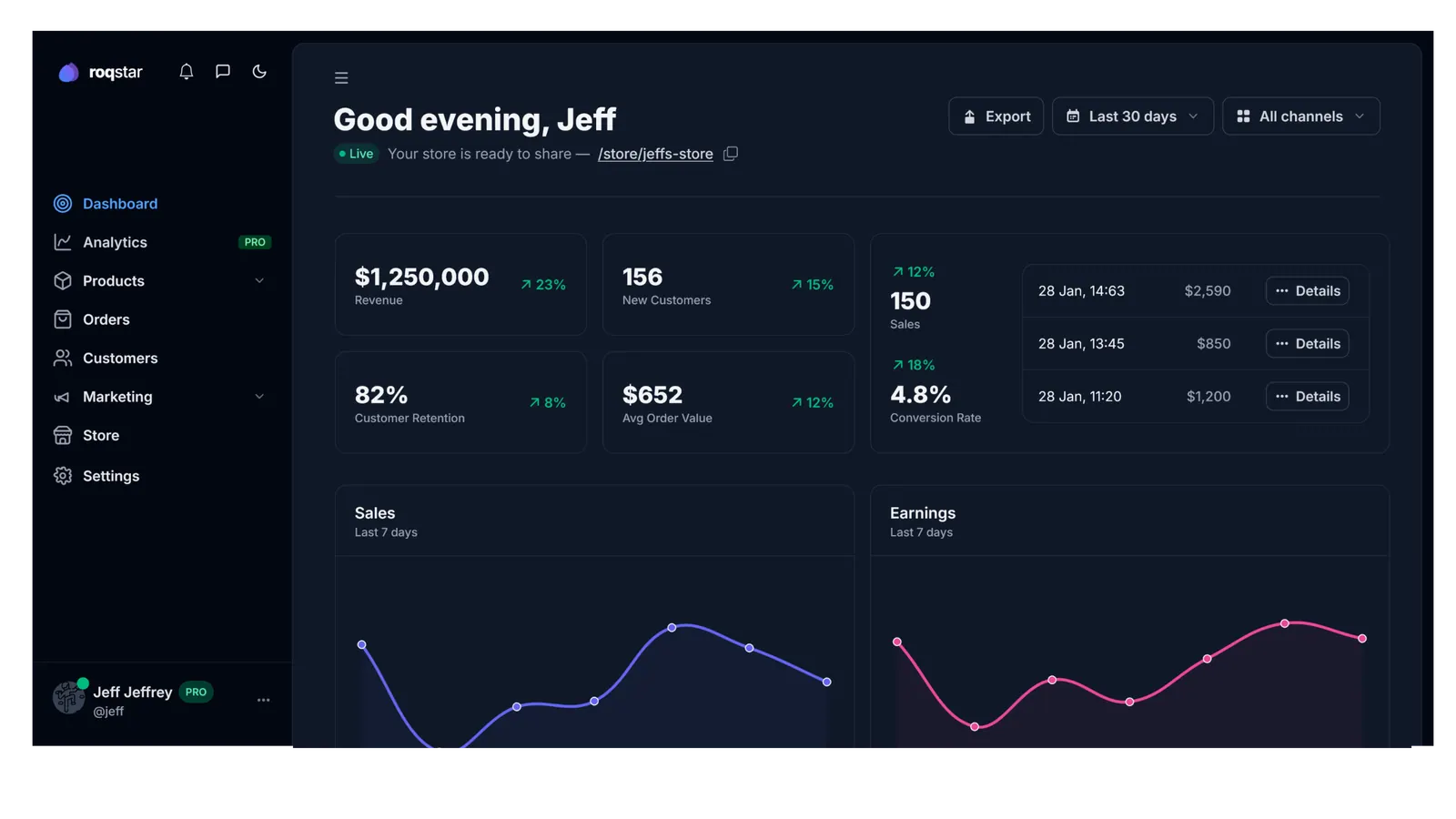
Once you sign in, every seller feature is reachable from the same three places: the sidebar, the header, and the account menu.
The sidebar
The sidebar groups every page into three sections.
Top
- Dashboard: KPI cards, charts, and latest orders.
- Setup: only visible until your onboarding checklist is complete. Shows a yellow badge with the number of remaining steps.
- Analytics (higher tier): advanced traffic, conversion, and geographic data.
Selling
- Sales: every paid order with invoices, refunds, and provider details.
- Items: your product catalog. Shows an amber badge with the number of products awaiting review.
- Clients: buyer profiles with order history and lifetime value.
- Store: storefront settings, taxes, email templates, apps, and integrations.
- Courses: only when the Courses module is installed in Store > Apps.
- Blog & Podcast: only when the Blog/Podcast module is installed.
- Referrals: your shareable referral link and stats.
Account
- Account: redirects to Settings > Profile.
- Settings: General, Profile, Notifications, Privacy, Billing, Payments, Referrals, and Team tabs.
Bottom panel
Your avatar, display name, and a PRO badge if your tier qualifies. Click the panel to open the account menu (FAQ, Documentation, Support, Change avatar, Sign out). When your plan does not yet include Pro features, a compact Upgrade your plan card appears beneath it.
The header
- Search: quick navigation across products, orders, and settings.
- Chat: opens the seller chat (Store / Community / Internal). Shows an unread bubble when new messages arrive.
- Notifications: bell icon with a dropdown of recent events. Click any item to jump to its source (an order, a team invite, etc.). Use Mark all read to clear the list.
- Avatar menu: quick access to your profile, settings, and sign-out.
Mobile
On screens narrower than 768 px the sidebar collapses behind a menu button at the top-left. The header keeps the chat, notifications, and avatar shortcuts.
Toasts & notifications
Every save, delete, or error confirmation appears as a toast in the top-right corner. Toasts auto-dismiss after a few seconds. If a toast offers an action button, clicking it usually navigates you to the affected page.
Guided tours
Many pages have a floating tour button in the lower-right that walks you through the controls on that screen. See Guided tours.