How to add payment options
Connect Stripe and/or PayPal in Settings > Payments so buyers can pay you directly.
Connect Stripe and/or PayPal so buyers can pay at checkout. You need at least one. Payments go to your accounts. You are the merchant of record.
No Roqstar payouts. Buyer payments go directly to your Stripe or PayPal account. You are the merchant of record (MOR) for your store sales. Roqstar is the software that runs your storefront and checkout. We do not hold your sales proceeds or maintain a seller payout balance.
Roqstar works with two processors:
- Stripe: major credit/debit cards, Apple Pay, and Google Pay (and PayPal via Stripe where available). Optional for one-time storefront sales; required for memberships and required to list on the marketplace when that feature is available and you are approved to submit.
- PayPal: PayPal Checkout when you connect a PayPal business account. Fine on its own for storefront sales.
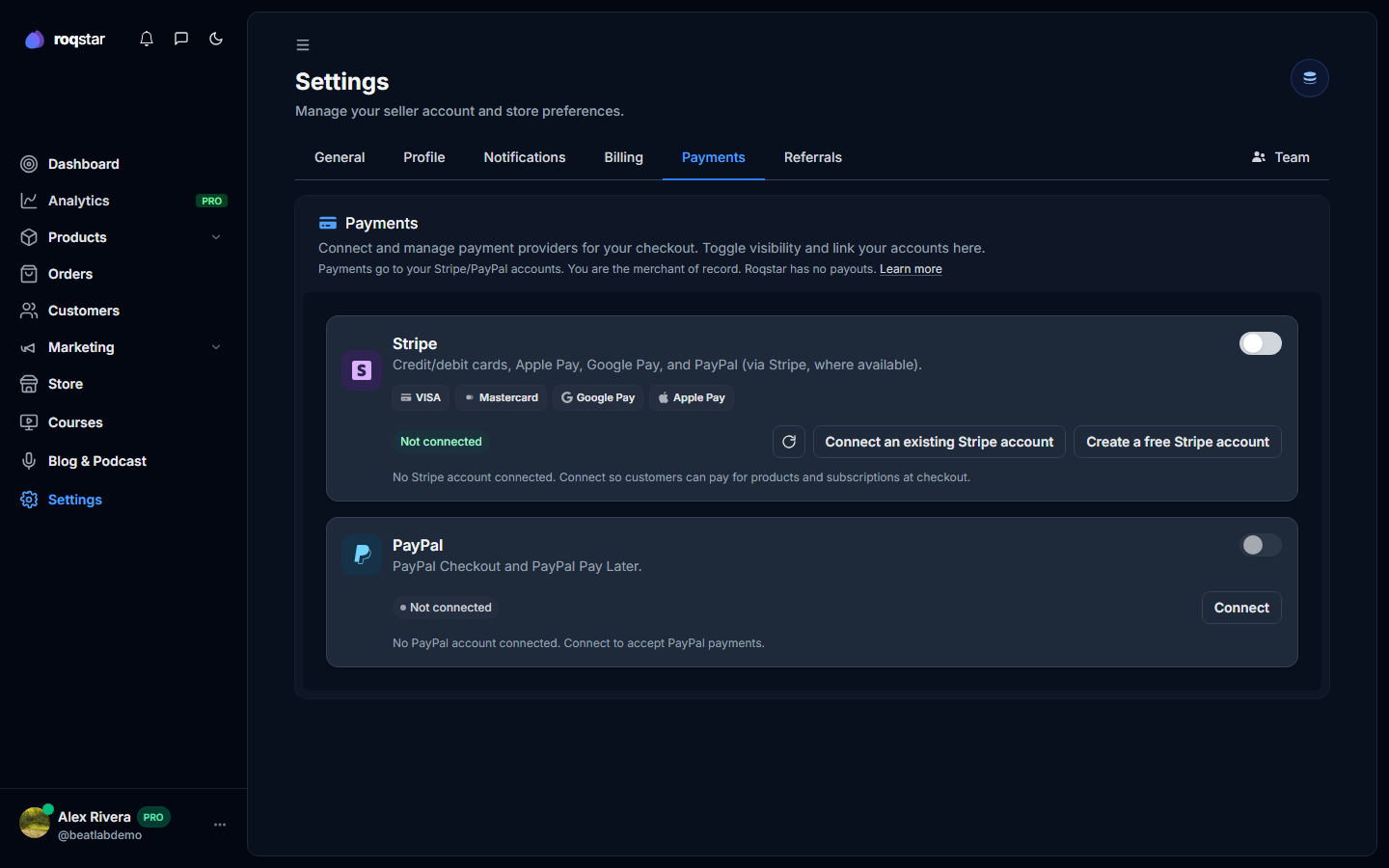
How to connect Stripe
- In the sidebar, open Settings, then the Payments tab.
- On the Stripe card, click Connect an existing Stripe account. If you do not have a Stripe account yet, click Create a free Stripe account first.
- Sign in to Stripe if prompted, then authorize Roqstar to connect.
- Complete any identity, bank, or tax steps Stripe shows (these vary by country).
- Return to Settings > Payments. Refresh the Stripe card if needed. When connected, status shows enabled and the button becomes Manage.
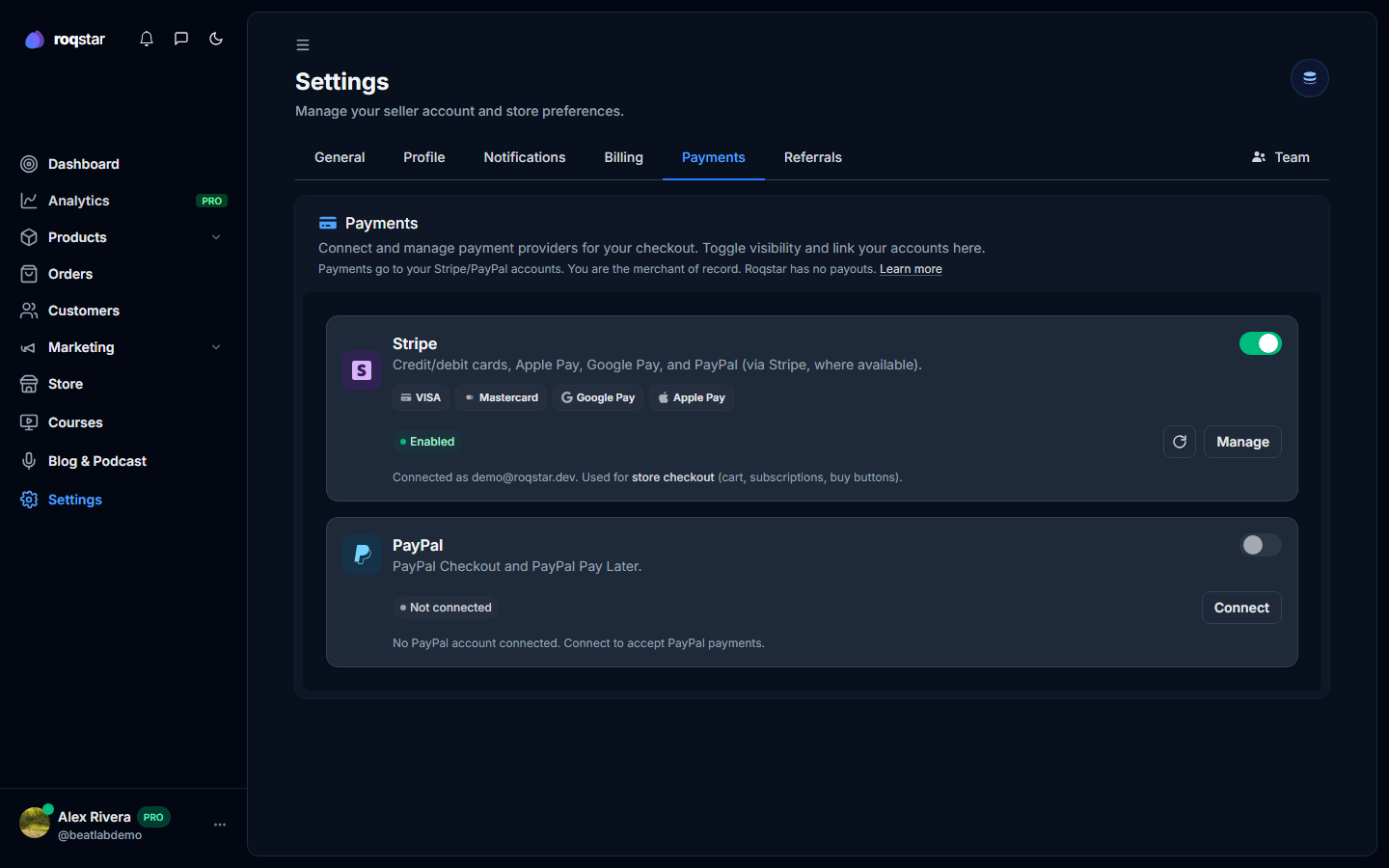
How to connect PayPal
- In the sidebar, open Settings, then the Payments tab.
- On the PayPal card, click Connect.
- Sign in with your PayPal Business account and approve the connection.
- Return to Roqstar. PayPal should show connected; leave the toggle on to offer it at checkout.
If PayPal fails to connect, retry in the same browser session without blockers, and use a Business account (not a Personal buyer account). See PayPal will not connect.
How you get paid
There is no Roqstar payouts page. Funds settle to your Stripe or PayPal account on their schedules. For ownership details, see Settings > Payments.