Team
Invite teammates, manage seats, and accept incoming invites.
Collaborate with others on your store from Settings > Team.
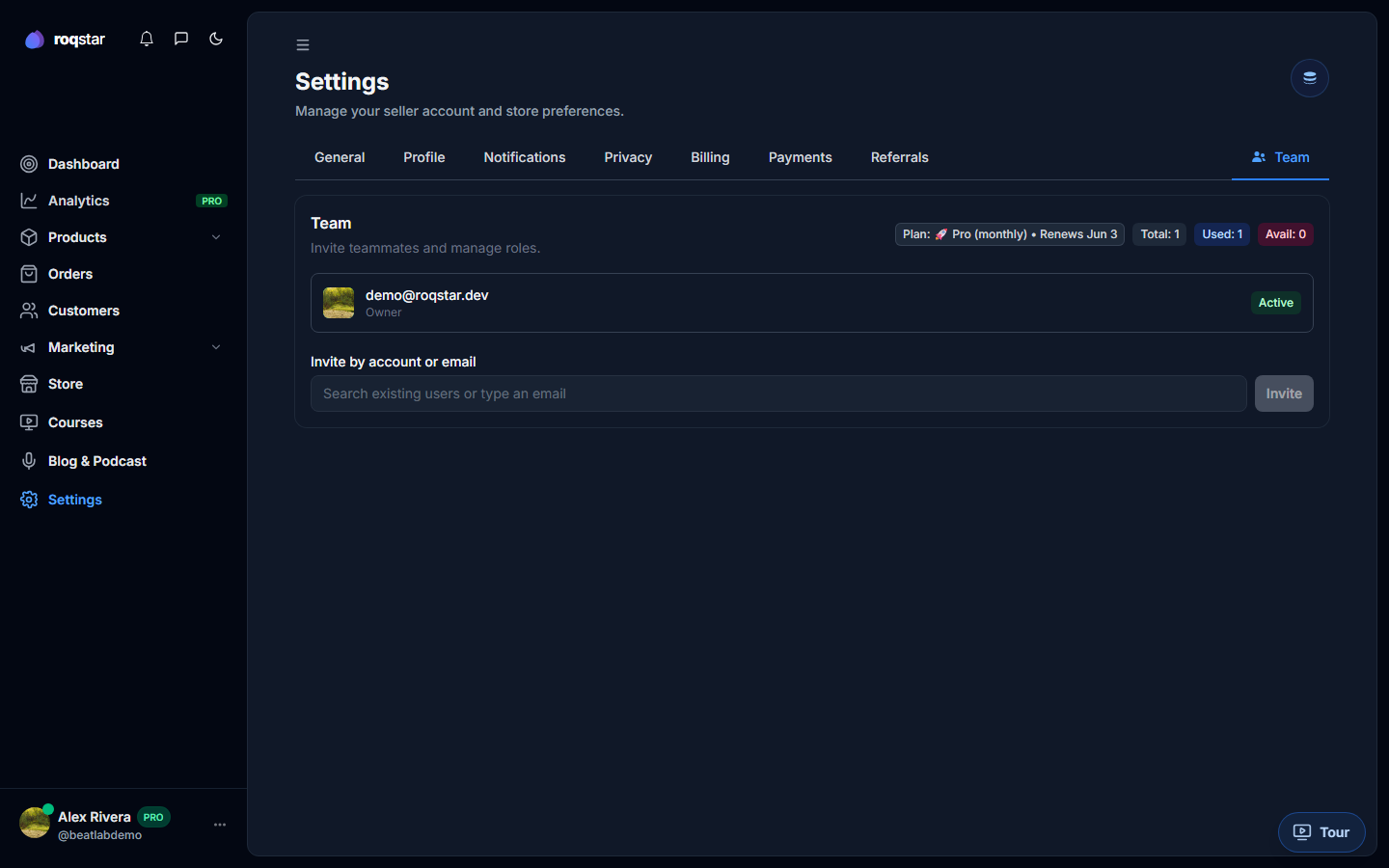
Seats
Your plan includes a fixed number of team seats. The tab header shows used / total. When all seats are taken, the invite button is disabled and a toast suggests upgrading.
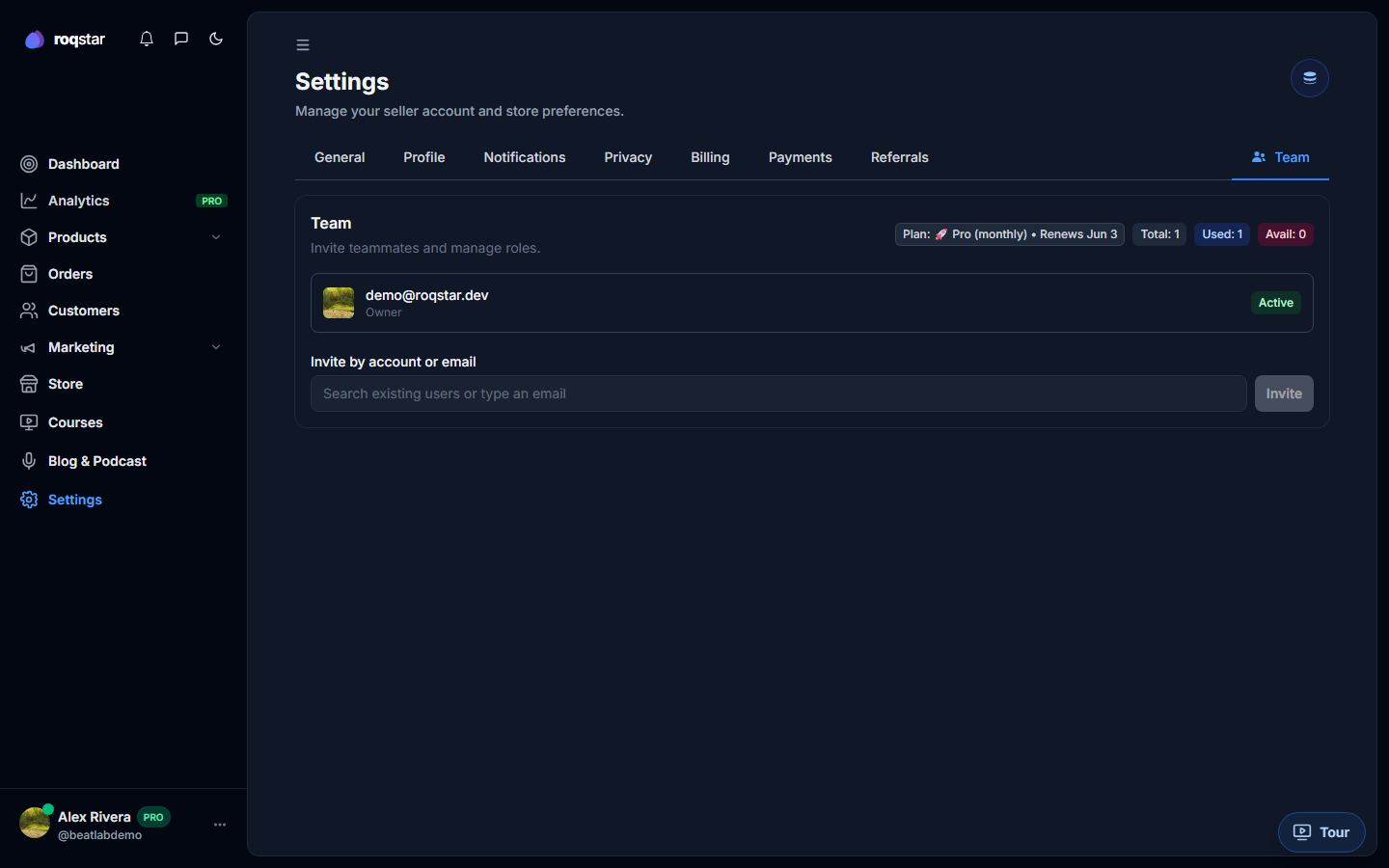
Inviting a member
- Click Invite member.
- Enter their email address.
- They receive an invite link to join your store.
Accepting an invite
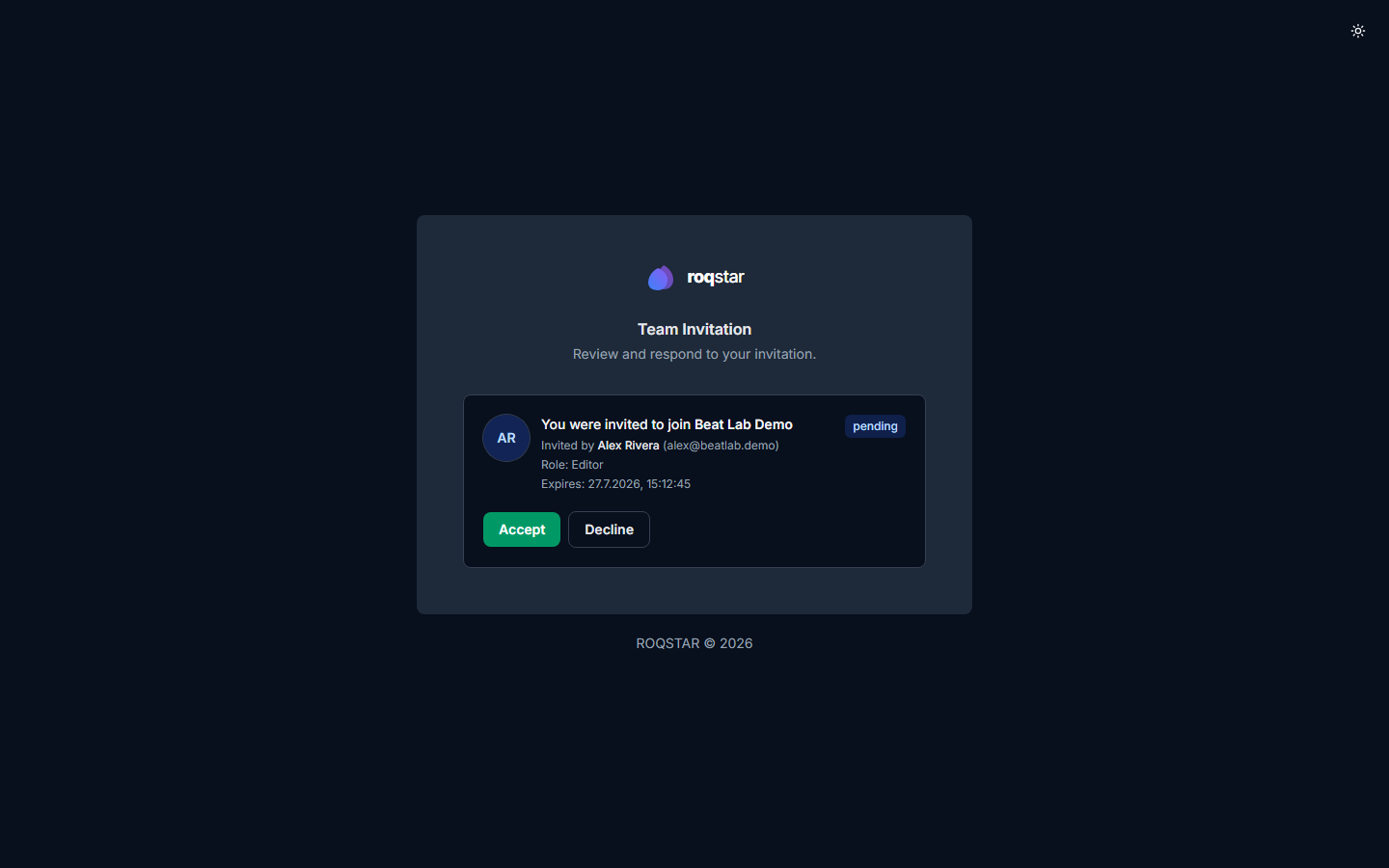
When someone invites you to their store, you can accept or decline in either place:
- Email link: open the invite link (sign in if prompted). You see the store name, owner profile, and Accept / Decline.
- Settings > Team: incoming invitations appear at the top of the Team tab with the same Accept / Decline actions.
If the owner's seats are full, ask them to upgrade under Settings > Billing or remove another member before you can join.
Managing members
- Remove: revoke access immediately.
- Pending invites: resend or cancel invites you sent before they are accepted.
Related
- Subscription Plans (team member limits)
- Billing