Bundles
Create a bundle of products at a package price, control discounts, and understand how order lines and licenses work.
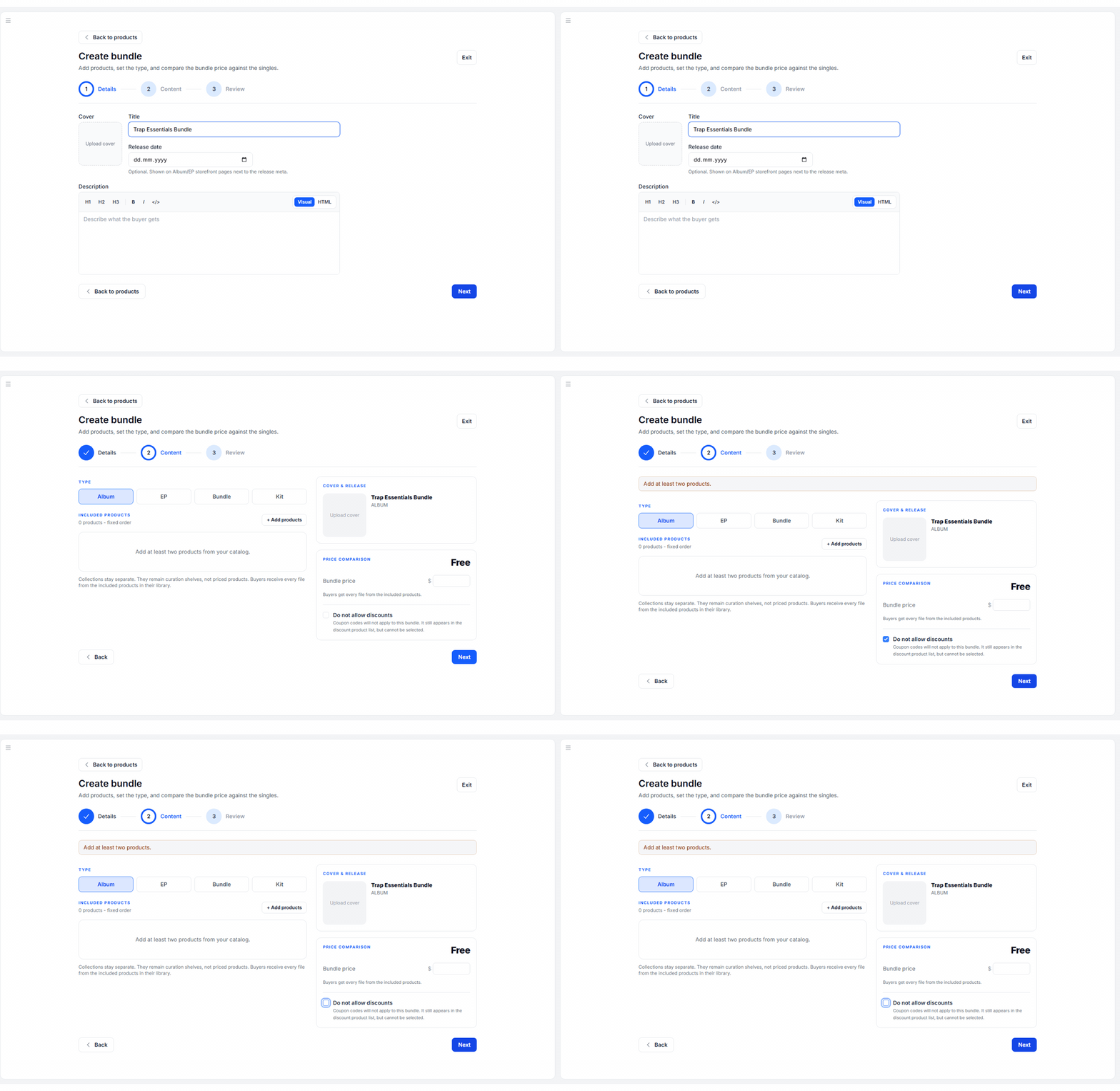
A bundle packages two or more products into a single listing at a combined price. Create one under Products > New > Bundle, which opens the Bundle Wizard. The product Wizard (Products > Wizard) is for single products only.
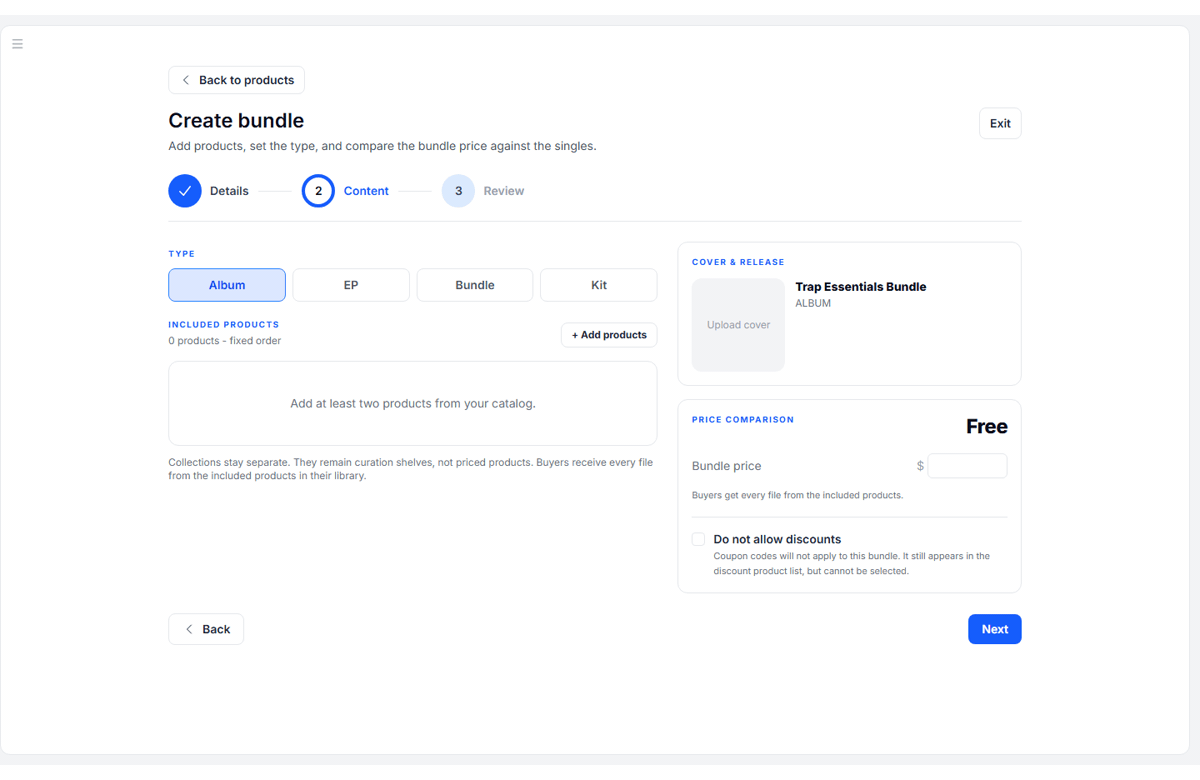
Bundle fields
| Field | Notes |
|---|---|
| Name | Shown on storefront and in buyer orders. |
| Products | Select 2 or more products from your catalog. Each becomes a child line in the order. |
| Price | Set a bundle price in any supported currency (USD, EUR, GBP, CHF, CAD, AUD, NZD, JPY, SEK, NOK, DKK, PLN, INR, BRL, MXN). The bundle price replaces individual product prices. |
| Do not allow discounts | Checkbox in the Wizard. When checked, discount codes cannot be applied to this bundle at checkout. |
| Description, cover, files, and media | Same steps as a standard product. |
What buyers see
The bundle appears as a single product card on your storefront. At checkout buyers pay the bundle price. After purchase their order shows the bundle and each included product as separate line items. There is no double charge: they pay once for the set.
Order lines and fulfilment
Each child product generates its own order line so the buyer gets each individual download. Licence terms, download links, and fulfilment all come from the original product definitions. Manage files, stems, and add-ons on each child product, not on the bundle listing itself.
Discounts and bundles
Under Marketing > Discounts, the Also applies to bundles option is off by default. Enable it on a specific discount code if you want that code to apply to bundles. If a bundle has Do not allow discounts checked, it is excluded from codes even when "Also applies to bundles" is on. In the discount product picker, those bundles appear disabled with an explanation.
Make an offer
Bundles support the Make an offer feature the same way single products do. Enable it in the product pricing settings so buyers can submit a custom offer at checkout.
Upsells on bundles
You can attach an upsell to a bundle under Marketing > Upsells. Set the bundle as the base item and select a related product to suggest before checkout.